
Image to coloring page converter
Turn any image into a coloring page: a phone photo, a screenshot, a scanned drawing or a picture you saved. Upload it, and in about 15 seconds you get clean outlines ready to print.
- Photos and pictures
- HEIC from iPhone
- First page free
Your photo is deleted as soon as your page is ready.
- JPG, PNG, WebP, HEIC in
- 4 formats
- Thin, medium, bold lines
- 3 weights
- Letter and A4 pages
- 300 DPI
- Download formats
- PDF, PNG, SVG
Convert an image to a coloring page online
An image to coloring page converter takes the shapes in a picture and redraws them as black outlines on white, so every area can be filled in with crayons or markers. Colors, shading and texture are removed; the subject, its pose and the layout of the picture stay the same.
This converter uses an AI image model to draw the outlines, then cleans the result into pure black and white in your browser. That is why the pages print crisply instead of looking like a faded photocopy.
How to convert an image to a coloring page
Upload the image
Choose a JPG, PNG, WebP or HEIC file, or drag it onto the upload box. Large photos are resized in your browser before upload.
Choose Standard or Simple
Standard keeps the details. Simple for Kids turns small textures into a few large shapes for younger children.
Create the page
Press Create coloring page and wait about 15 seconds while the outlines are drawn.
Adjust and download
Pick thin, medium or bold lines, choose Letter or A4, and download a PDF, PNG or SVG.
Image formats we support
You can upload the formats phones and computers create most often. Animated images and SVG files are not accepted as uploads.
JPG
The standard photo format from cameras, phones and most websites.
PNG
Screenshots, illustrations and images with flat colors. Transparent areas are treated as white.
WebP
The format many websites use to save images. It uploads like any other picture.
HEIC
The default format on iPhone. It is converted to JPG in your browser before upload, so nothing extra is needed on your side.
Three line weights
Line weight is applied after the page is made, so you can switch as often as you like without using another credit.
Thin
Lines exactly as drawn. Best for colored pencils, older kids and adults who enjoy small details.
Medium
The default. Clear enough for crayons and markers while keeping most of the detail.
Bold
The thickest outline, easiest to color inside for preschoolers. Very small details can merge, so it suits simple pictures best.
Image to coloring page examples
Unedited results from this converter, with the settings used.
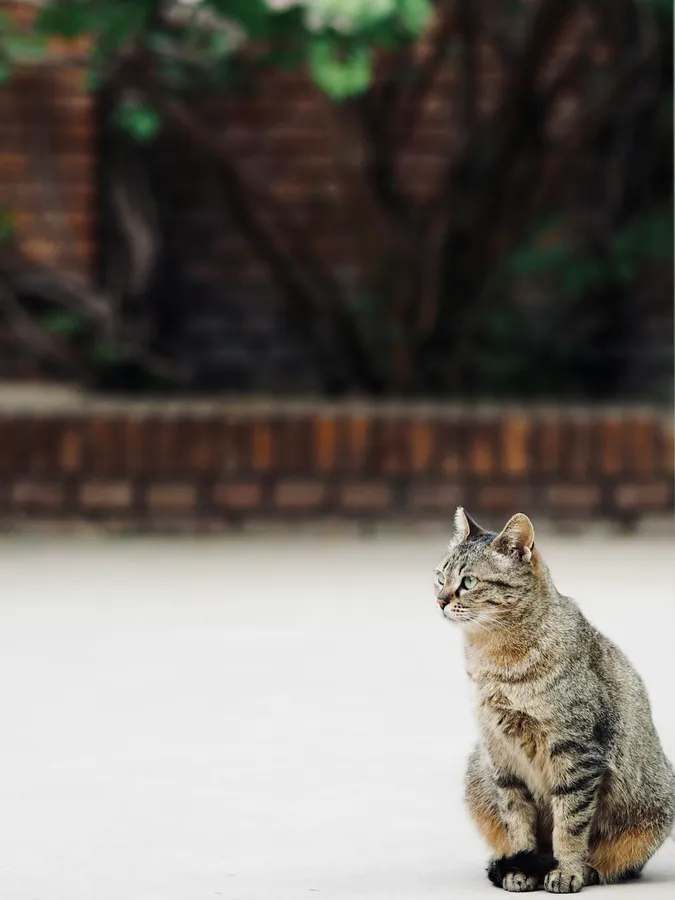
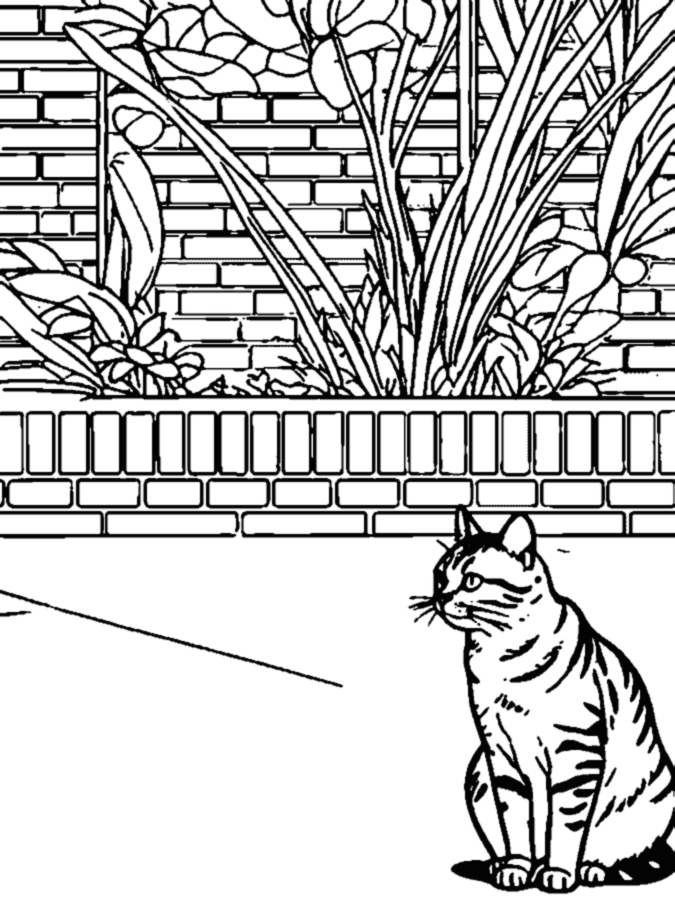

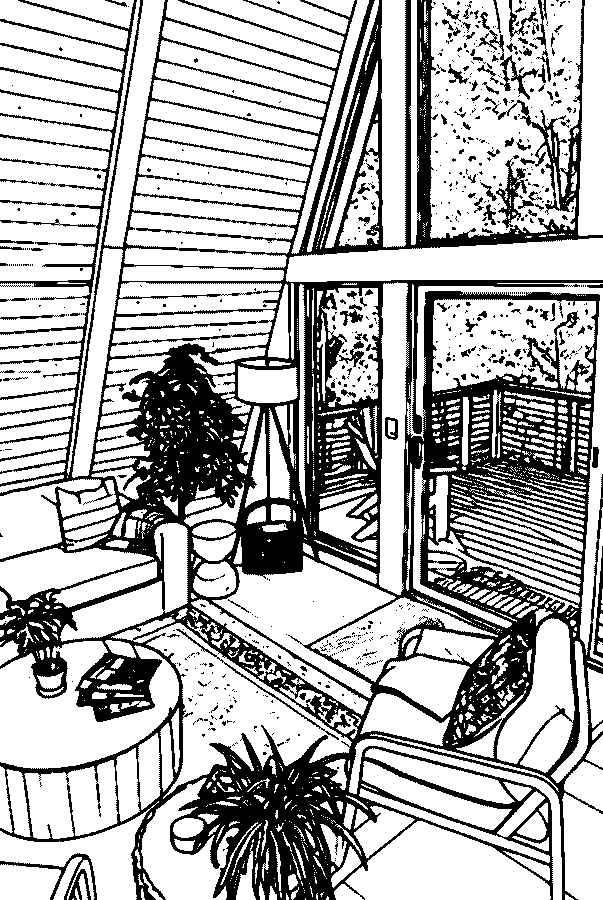
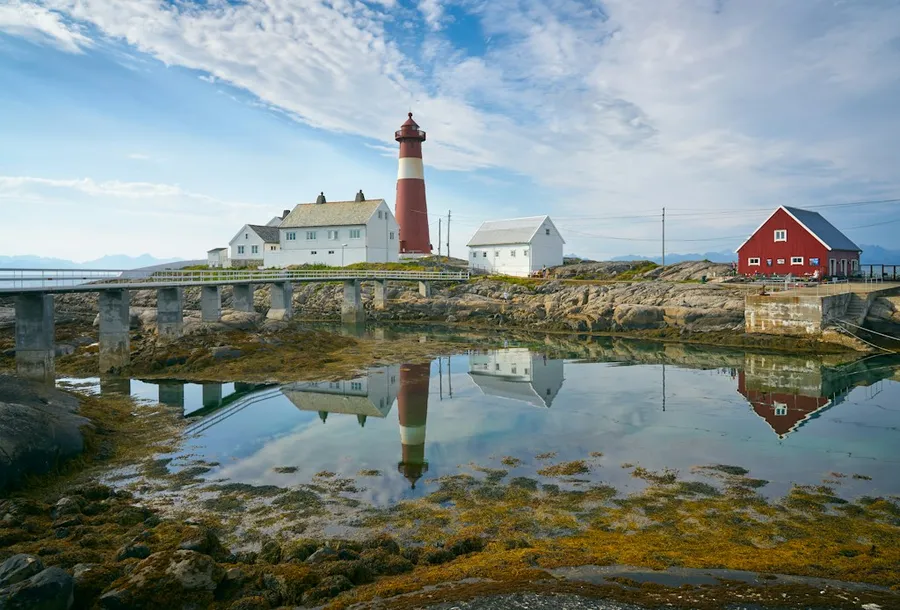
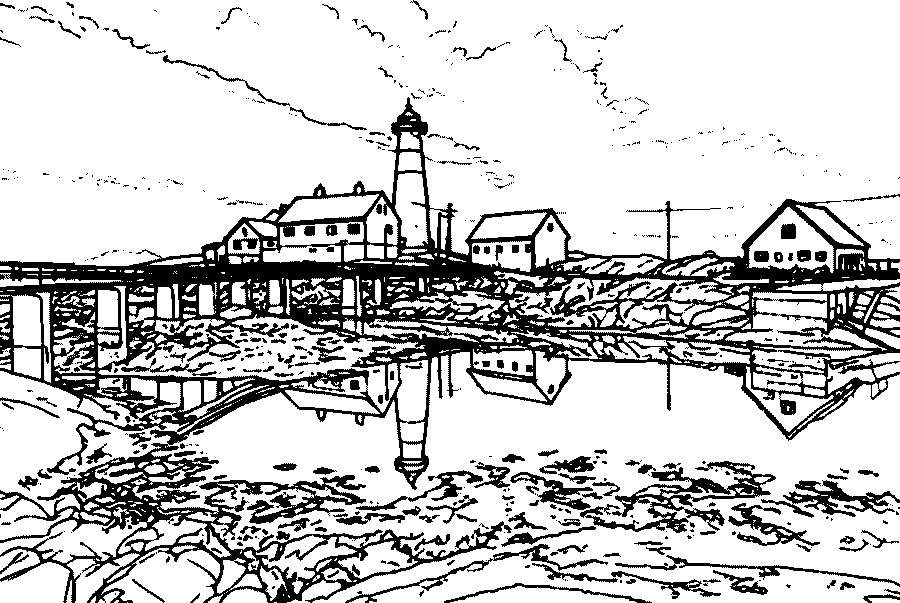
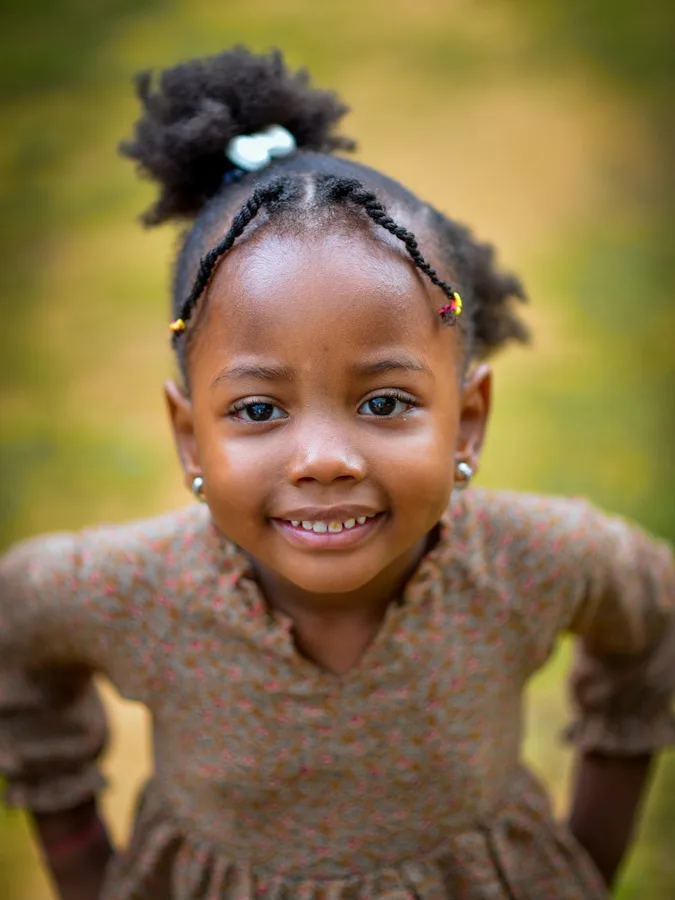
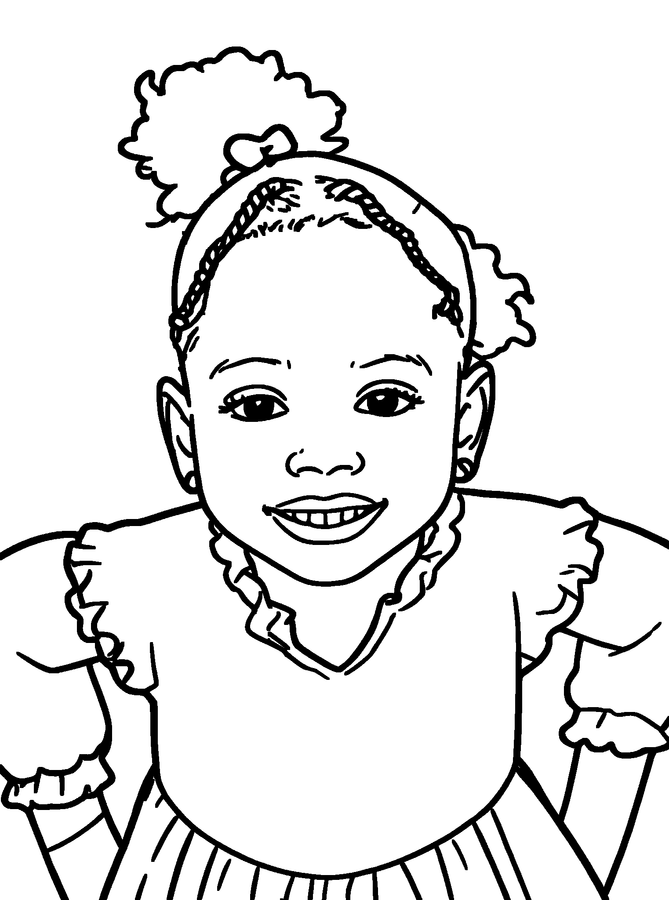
Photo to coloring page or picture to coloring page?
People search for both, and they mean the same tool. A photo usually means a camera picture of real people, pets or places; a picture can also be a drawing, a cartoon or an image saved from the web. The converter treats them the same way: it finds the main shapes and redraws them as outlines.
Where they differ is the result. Photos of real scenes have more texture, such as fur, grass and fabric, so they make fuller pages; the Simple for Kids style or the bold line weight thins that out. Drawings and cartoons already have clear edges, so they convert into very clean pages with any setting.
For outlines meant for tracing or cutting rather than coloring, try the photo to outline converter. To make a page from a favorite family photo, start on the photo to coloring page tool.
Converting a whole set of pictures? Put them together as a photo coloring book with a cover and page numbers.
Where to use your coloring pages
Classroom activities
Turn class photos, field trip pictures or images from a lesson into pages for morning work and early finishers.
Family time
Print pages of grandparents, cousins and pets so kids can color people they know.
Parties
Set out pages made from the birthday child's photos as a quiet activity or a take-home favor.
Journals and scrapbooks
Color a page from a trip photo and paste it into a travel journal or memory book.
Tips for a cleaner page
Crop the image to the main subject and use a picture with even light. Clear edges give clean outlines; heavy shadows and busy backgrounds add lines that make the page harder to color.
If the page still has more detail than you want, switch to the bold line weight, or create it again with the Simple for Kids style.
Image to coloring page questions
How do I turn an image into a coloring page?
Upload the image, keep the Standard style, press Create coloring page, then download the PDF and print it at 100% scale.
Is the image to coloring page converter free?
Your first page is free without an account, and a free account adds 3 more. After that, pages use credits from a one-time pack.
Can I convert a screenshot or a drawing?
Yes. Screenshots, scanned drawings and saved pictures work the same way as photos. Clear images with one main subject give the cleanest pages.
Why does my page have so many lines?
Busy photos with grass, fabric patterns or crowds produce more lines. Try the Simple for Kids style, the bold line weight, or crop the image to the main subject before uploading.
What size will the printed page be?
Pages are laid out on US Letter (2550 x 3300 px) or A4 (2480 x 3508 px) at 300 DPI with half-inch margins.
Can I use an iPhone photo?
Yes. HEIC photos from iPhone are accepted and converted in your browser before upload.
Can I turn several images into one coloring book?
Yes. When a page is ready, choose Add to Coloring Book, or open the coloring book maker and add up to 24 images at once. You can reorder the pages, add a title and a color photo cover, and download everything as one PDF. The coloring book needs a free account.
What happens to my image after the page is made?
The image you upload is deleted from our storage as soon as the page is finished or the attempt fails. The finished page is kept privately so you can download it again, and signed-in users can delete it at any time under My pages. Images are never shown in a public gallery or used by us to train AI models.
Can I print the page directly?
Yes. Press Print on the finished page, or download the PDF and print it at 100% scale. The page is laid out with half-inch margins on Letter or A4, so nothing is cut off.
Is there a watermark on the pages?
No. Every page, including your free pages, downloads without a watermark at the full 300 DPI resolution.
Convert your image to a coloring page
Upload a picture and print the page in a few minutes. The first one is free.
Upload an image